Contents
How to Connect a MIDI Keyboard to Your DAW
TL;DR: To connect a MIDI keyboard to your DAW, plug it in via USB (most modern keyboards) or MIDI-to-USB interface, install any required drivers, then set your DAW’s MIDI input to recognize the device. Most keyboards are plug-and-play — you’re usually making music within five minutes.
What You Need Before You Start
The short answer: a MIDI keyboard, a cable or interface, and a DAW with MIDI input enabled. That’s it. No audio interface required for MIDI signal — only if you want audio from built-in sounds.
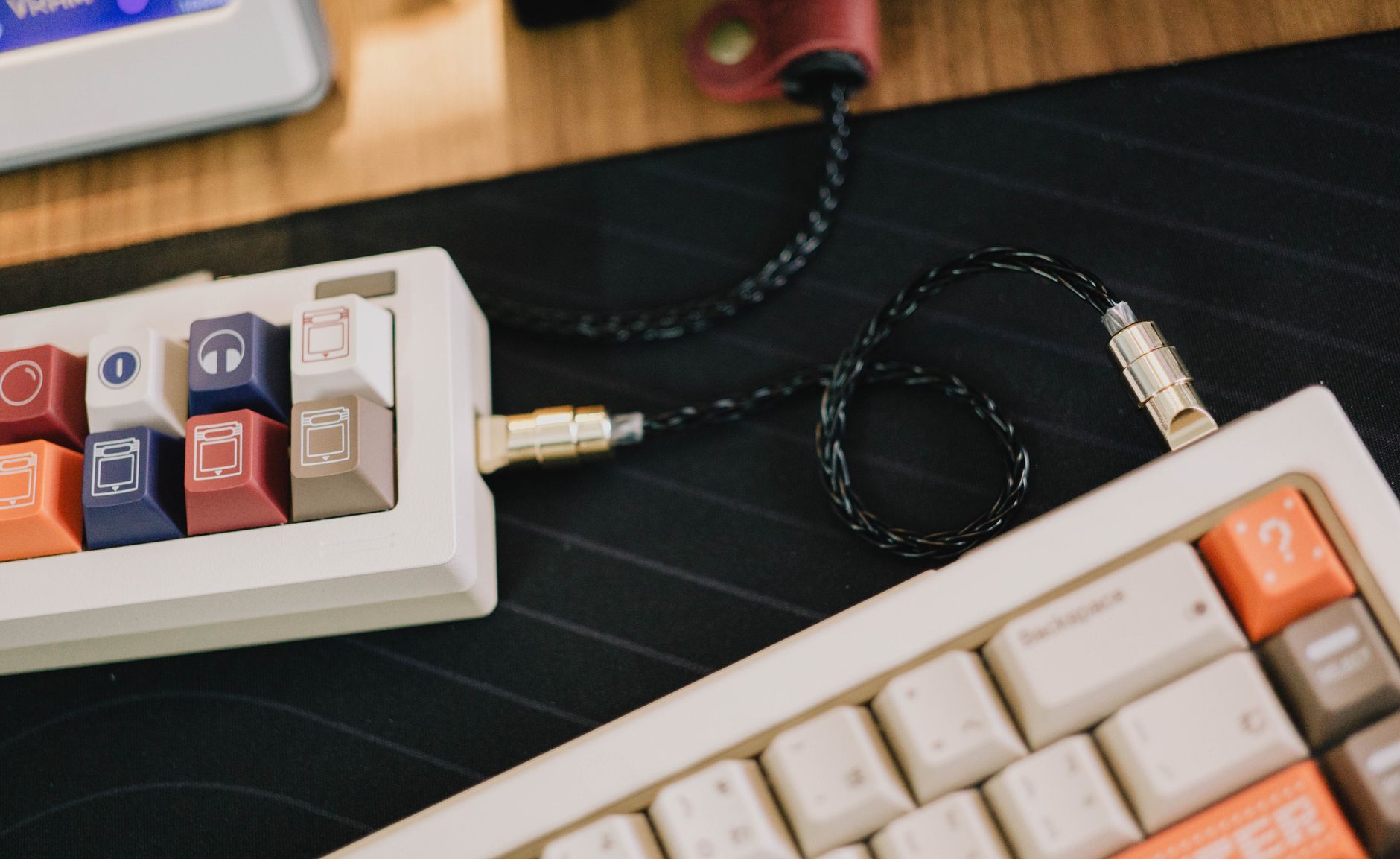 Photo: FOX ^.ᆽ.^= ∫ via Pexels
Most keyboards made after 2010 connect over USB and appear as class-compliant MIDI devices — meaning no driver installation needed on Mac, and minimal setup on Windows. Older keyboards use 5-pin DIN connectors and need a MIDI-to-USB interface.
What you actually need:
| Setup | Cable/Hardware Needed | Driver Required? |
|---|---|---|
| USB MIDI keyboard | USB-A to USB-B (or USB-C) | Usually no |
| 5-pin DIN keyboard | MIDI-to-USB interface | Sometimes |
| Bluetooth MIDI keyboard | None (wireless) | Varies by OS |
| Keyboard through audio interface | MIDI ports on interface | Interface driver |
Step 1: Connect the Keyboard Physically
Plug the keyboard into your computer via USB, or connect 5-pin DIN MIDI Out → MIDI In on your interface. Power the keyboard on before launching your DAW.
For USB connections: use the USB port labeled “USB to Host” or “USB MIDI” on the keyboard — not the one labeled “USB to Device” (that’s for flash drives). Some budget keyboards ship with USB-B cables; if yours didn’t, any standard printer cable works.
For 5-pin DIN: run a MIDI cable from the keyboard’s MIDI Out to your interface’s MIDI In. The direction matters — reversed cables produce silence.
If your audio interface has MIDI ports (most do, including the Focusrite Scarlett 2i2 and PreSonus AudioBox USB 96 ), you can route 5-pin MIDI through it without a separate adapter.
Step 2: Install Drivers (If Needed)
Most USB MIDI keyboards are class-compliant and need no driver. Check the manufacturer’s site if your keyboard isn’t recognized after 30 seconds.
 Photo: Abdelrahman Ahmed via Pexels
Mac handles class-compliant MIDI natively via Core MIDI. Windows uses its own USB MIDI driver, which works for most devices — but some keyboards (particularly older Roland, Yamaha, and Arturia models) require manufacturer drivers for full functionality.
Driver check by brand:
- Arturia (KeyStep, MiniLab): requires Arturia MIDI Control Center for preset management, but basic MIDI works driver-free
- Native Instruments (Komplete Kontrol, Maschine): requires NI Connect / NI Hardware Controller
- Akai (MPK Mini): class-compliant, no driver needed
- Roland/Boss: most newer models are class-compliant; check the product page
After installing drivers, restart your computer before opening the DAW.
Step 3: Configure MIDI Input in Your DAW
Every major DAW handles MIDI input differently, but the principle is the same: enable the keyboard as a MIDI input device, then route that input to a MIDI or instrument track.
Ableton Live
- Go to Preferences → MIDI
- Find your keyboard in the Input list
- Enable Track (to trigger notes) and optionally Remote (for MIDI mapping knobs/faders)
- Create a MIDI track → set “MIDI From” to your keyboard → arm the track
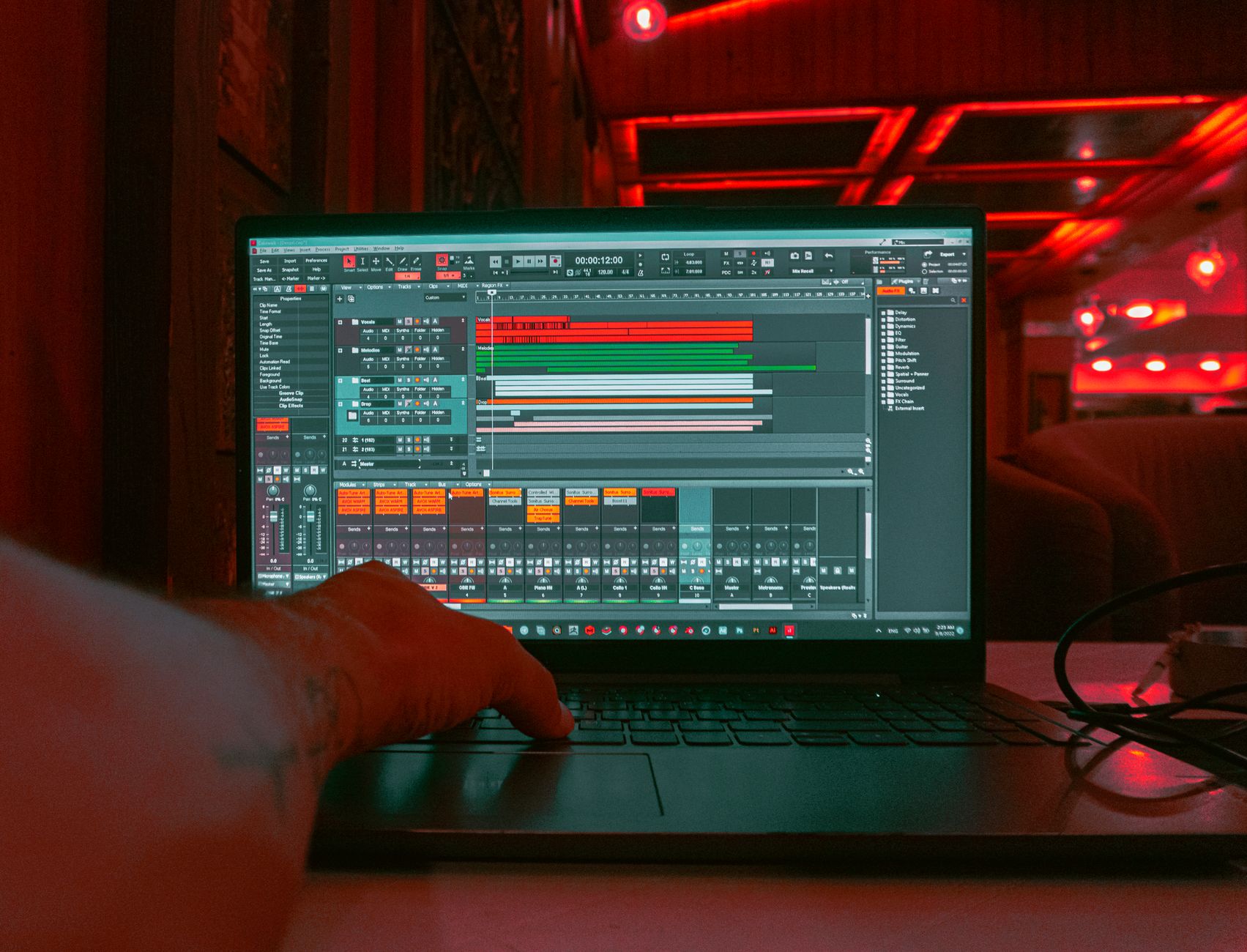 Photo: Qaws Studio via Pexels
Logic Pro
- Connect the keyboard — Logic detects new MIDI devices automatically via Core MIDI
- Open the MIDI Environment (optional, for routing) or simply create a Software Instrument track
- Set the track input to “All” or your specific keyboard
- Click the record-arm button on the track
FL Studio
- Go to Options → MIDI Settings
- Select your keyboard in the Input list → click Enable
- Optionally set a Port number if you have multiple devices
- On any instrument channel, MIDI input is active by default when the device is enabled
Pro Tools
- Go to Setup → MIDI → MIDI Input Devices
- Check the box next to your keyboard
- Create a new MIDI or Instrument track → set the input to your keyboard
GarageBand
No configuration needed. GarageBand auto-detects connected MIDI devices. Create a Software Instrument track and play.
Step 4: Test the Connection
Play a few keys — notes should appear in your DAW’s MIDI activity indicator (usually a small LED or meter near the transport bar). If they do, you’re done.
If nothing happens, run through this checklist:
- Is the keyboard powered on?
- Is the track record-armed?
- Is the MIDI input set to your keyboard (not “All” if you’re unsure which device is which)?
- Did you enable “Track” in MIDI preferences (Ableton specifically)?
- Are you using the correct USB port on the keyboard?
Open your OS’s MIDI monitor to confirm the device is seen at the system level before blaming the DAW:
- Mac: Audio MIDI Setup (Applications → Utilities) → MIDI Studio
- Windows: MIDI-OX (free utility) or check Device Manager
Choosing the Right MIDI Keyboard
If you haven’t bought yet, the right keyboard depends on key count, feel, and whether you need built-in sounds. For pure DAW control, a 25–49 key controller without sounds is lighter and cheaper.
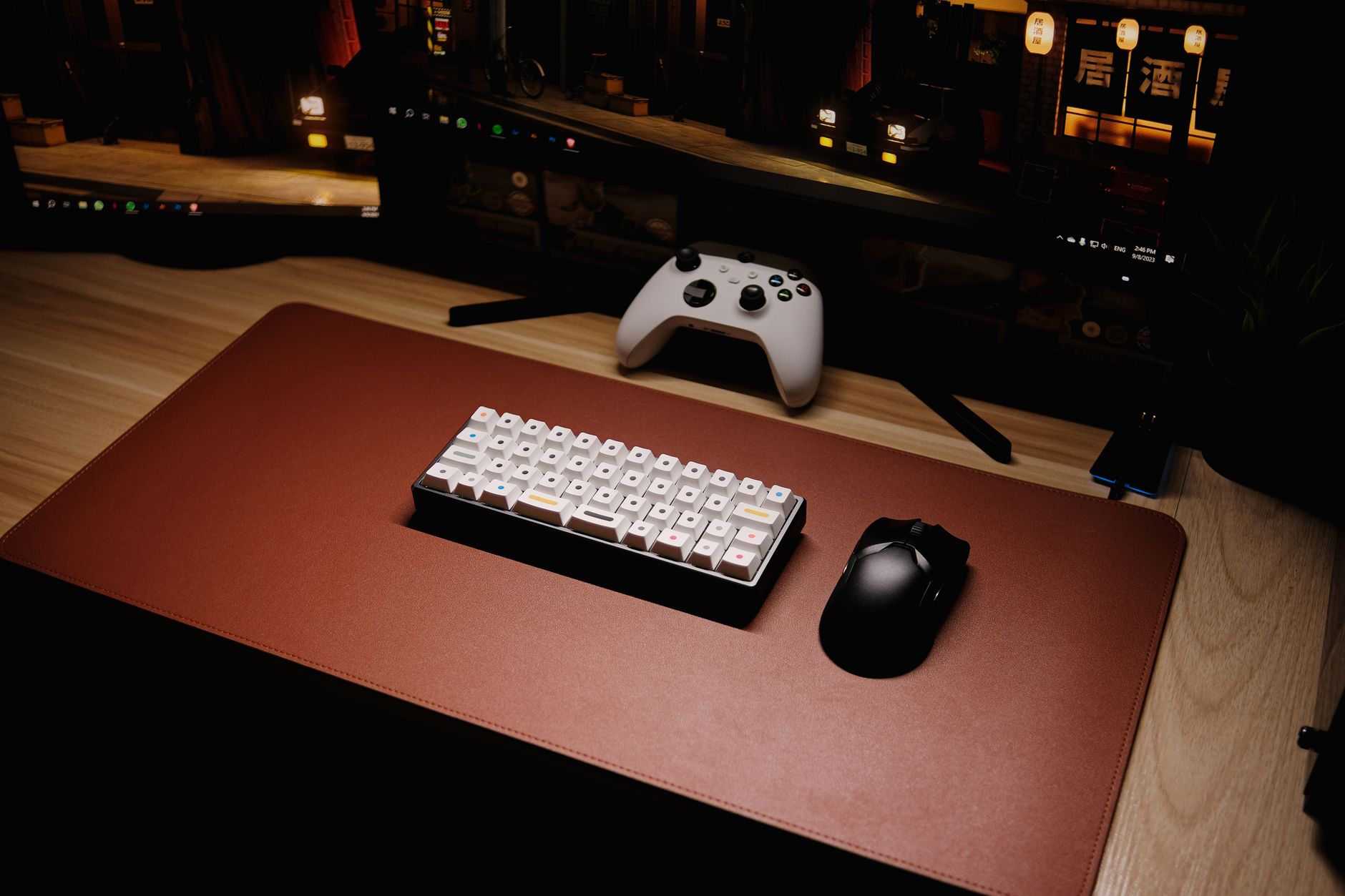 Photo: Click Jeth via Pexels
Specs to Know
| Spec | What It Means | Recommendation |
|---|---|---|
| Keys | Range of playable notes | 25 for travel, 49 for most production, 61+ for piano parts |
| Weighted/Semi-weighted | Key resistance | Weighted = piano feel; synth-action = faster, lighter |
| Velocity sensitive | Responds to how hard you play | Essential — avoid keyboards without it |
| Aftertouch | Pressure after key press triggers expression | Nice to have; rare under $150 |
| Arpeggiator | Auto-generates patterns from held chords | Useful for beat-making |
| Pads | Drum/sample triggering | Useful if you produce beats |
Top Picks by Use Case
| Product | Price | Keys | Best For | Verdict |
|---|---|---|---|---|
| Akai MPK Mini MK3 | ~$100 | 25 mini | Travel, compact setups | Best value entry point |
| Arturia KeyLab Essential 49 | ~$200 | 49 | DAW integration, Arturia plugins | Best DAW control |
| Native Instruments Komplete Kontrol A49 | ~$170 | 49 | NI plugin users | Best NI ecosystem fit |
| Roland A-49 | ~$130 | 49 | Feel-focused players | Best keybed under $200 |
| M-Audio Oxygen Pro 61 | ~$180 | 61 | Full-range players on a budget | Best 61-key value |
Verdict by archetype:
- First-time beginner: Akai MPK Mini MK3 — low cost, USB plug-and-play, compact
- Bedroom producer: Arturia KeyLab Essential 49 — DAW maps, solid keybed, bundled plugins
- Gigging musician: Roland A-49 — reliable, lightweight, excellent feel
- Prosumer: Arturia KeyLab 61 MkII or NI Komplete Kontrol S49 — motorized faders, deep DAW integration, premium keybeds
Troubleshooting Common Problems
Keyboard Connected but No Sound
MIDI carries performance data, not audio. If your keyboard has no built-in audio output connected to monitors, you hear nothing until a software instrument in your DAW receives the MIDI and generates sound. Create a Software Instrument track, load a plugin (even GarageBand’s built-in piano), and route MIDI to it.
Notes Stuck On
A MIDI “note off” message was lost. In Ableton, press Shift+Backspace to send an All Notes Off. In Logic, go to Window → MIDI Activity and look for stuck data. Unplugging and reconnecting usually clears it.
Double Notes / Echo
MIDI Thru is feeding back into your input. Check your DAW’s MIDI settings for any loopback routing and disable it. In FL Studio, check “Send MIDI input to output” isn’t checked.
Latency When Playing
This is audio latency, not MIDI latency. Lower your audio interface buffer size (128 or 64 samples for recording) in your DAW’s audio settings. MIDI data itself has sub-millisecond latency — the delay you’re hearing is the audio engine processing the plugin.
→ See also:
- Best MIDI Keyboards and Controllers (2026)
- Best MIDI Keyboard for Beginners
- Best MIDI Keyboard Under $100
FAQ
Do I need an audio interface to connect a MIDI keyboard? No. MIDI and audio are separate signals. A USB MIDI keyboard connects directly to your computer without an audio interface. You only need an interface if you want to record live audio (vocals, guitar) or if your keyboard uses 5-pin DIN MIDI connectors.
Why is my MIDI keyboard not showing up in my DAW? First check that your OS recognizes it: on Mac, open Audio MIDI Setup and look in MIDI Studio; on Windows, check Device Manager. If it’s not there, try a different USB port or cable. If it appears in the OS but not the DAW, check the DAW’s MIDI preferences and enable the device there.
Can I use a MIDI keyboard with GarageBand on iPhone or iPad? Yes. Connect via the Lightning or USB-C Camera Adapter, or use a class-compliant USB hub. Bluetooth MIDI also works natively on iOS — go to Settings → Bluetooth and pair the keyboard, then it appears automatically in GarageBand.
How many MIDI keyboards can I connect at once? As many as your USB ports (or hub) support. Your DAW treats each as a separate MIDI input device. You can route different keyboards to different tracks simultaneously — useful for splits, layering, or having a dedicated controller for drums and another for melody.
Does MIDI keyboard velocity affect my recordings? Yes, if the plugin you’re playing is velocity-sensitive (most are). Hitting keys harder sends a higher velocity value (0–127), which typically makes the sound louder or brighter depending on how the plugin is programmed. You can also draw or edit velocity values manually in your DAW’s piano roll after recording.
What’s the difference between a MIDI keyboard and a synthesizer? A MIDI keyboard (controller) produces no sound on its own — it sends MIDI data to trigger software or hardware instruments. A synthesizer generates its own audio and usually also sends MIDI. Both can connect to a DAW the same way, but a synthesizer requires an audio connection to record its internal sounds.
Editorial methodology: Assessments are based on manufacturer specifications, published user reviews, and editorial research. Physical hands-on testing is noted explicitly where it occurred. Rankings reflect our editorial judgment and are not influenced by affiliate commission rates. Full editorial policy · Affiliate disclosure