Contents
What Is an Audio Interface and Do You Need One?
TL;DR: An audio interface is an external sound card that converts analog signals (microphones, guitars, instruments) into digital audio your computer can record — and back again for playback. If you’re recording anything with a microphone or instrument, you need one. Built-in laptop sound cards simply don’t have the hardware quality, low-latency drivers, or proper inputs to do the job.
What Is an Audio Interface, Exactly?
An audio interface is a hardware device that sits between your microphones/instruments and your computer. It handles analog-to-digital conversion (ADC) going in, digital-to-analog conversion (DAC) going out, and provides proper impedance-matched inputs — XLR for mics, 1/4“ for instruments — that a laptop headphone jack physically cannot replicate.
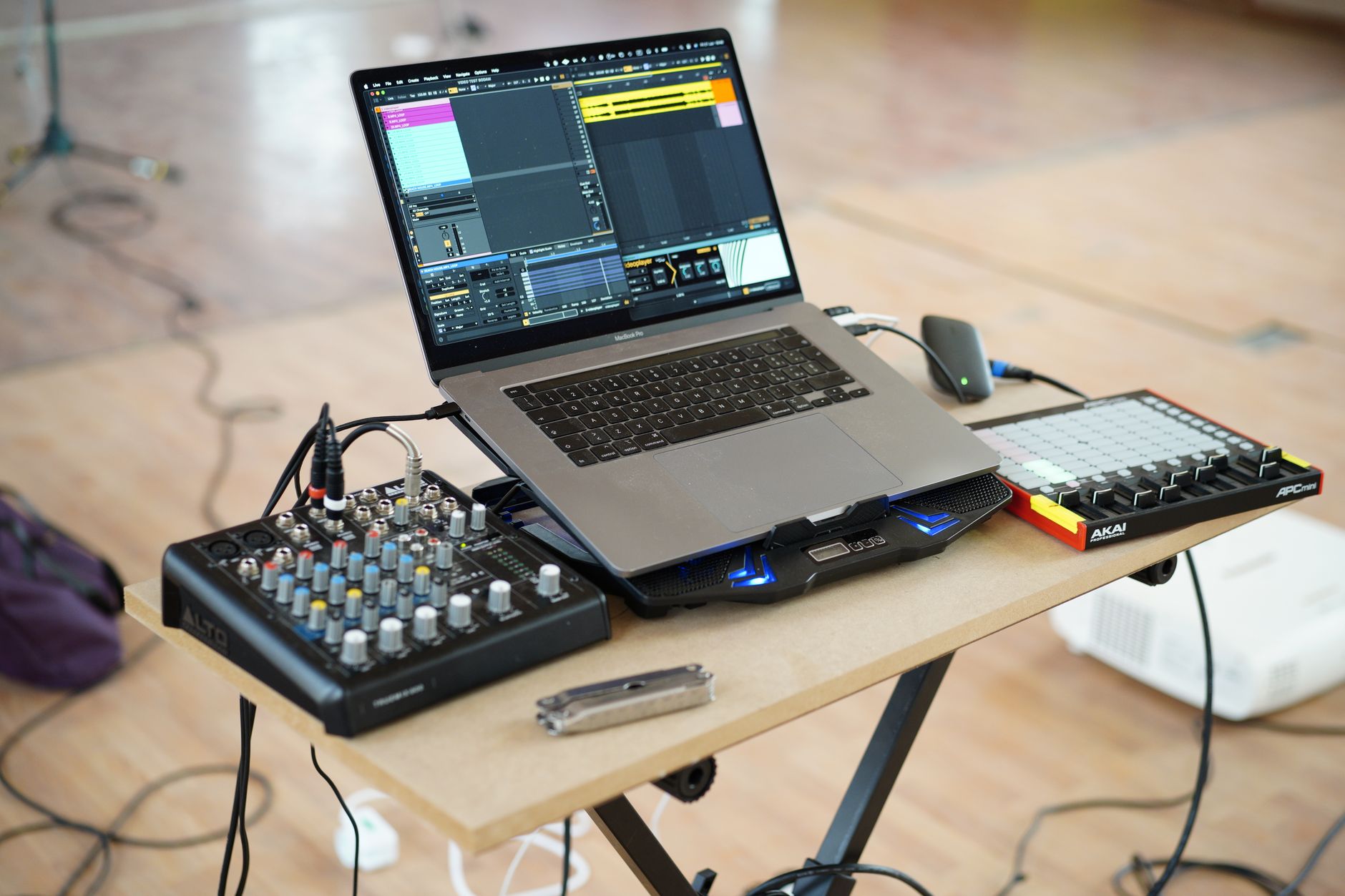
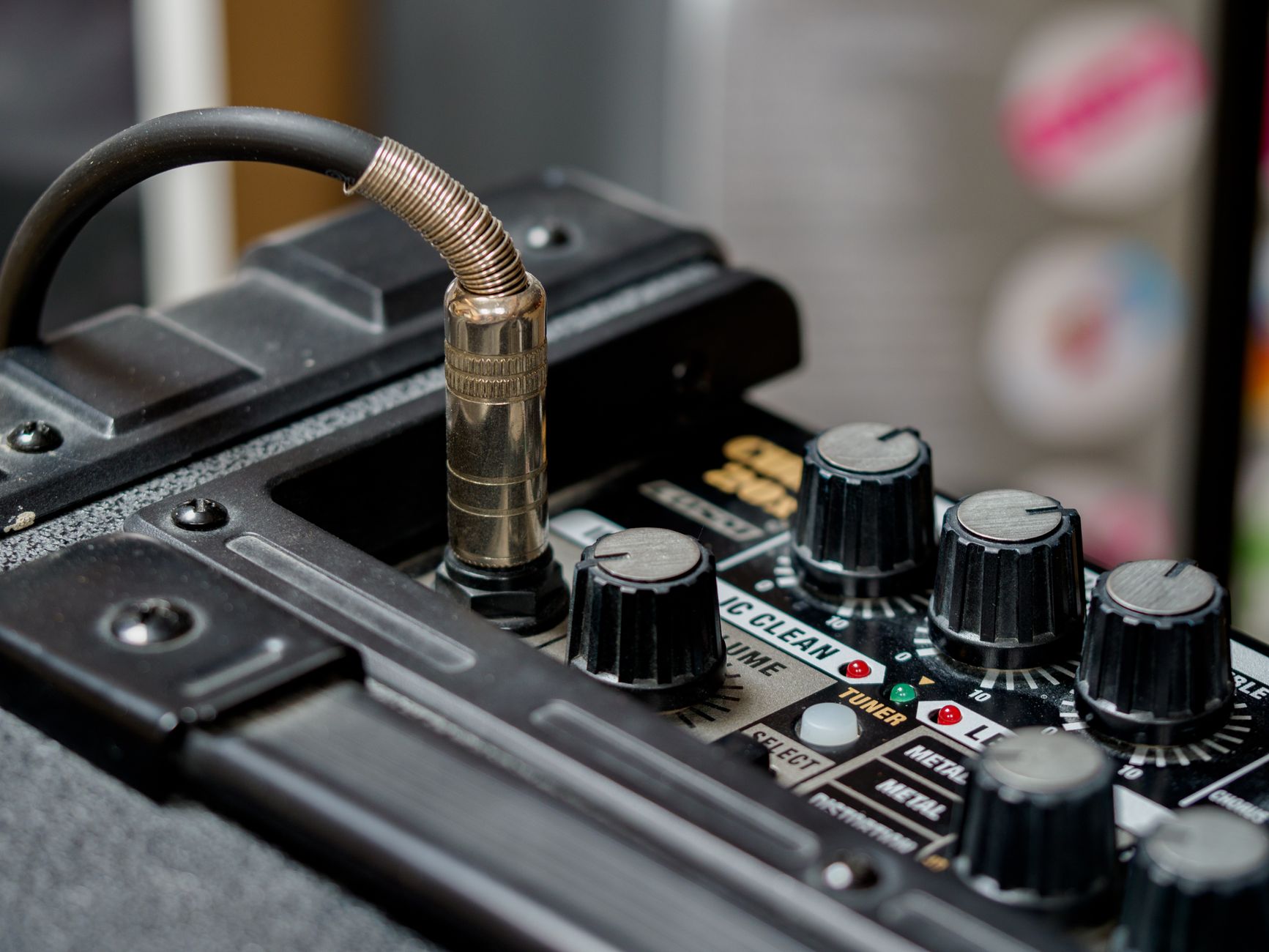 Photo: Brett Jordan via Pexels
Your computer already has a built-in sound card. The problem isn’t that it exists — it’s that it was designed for video calls and casual listening, not recording. Built-in converters introduce noise floors that are audible in recordings, and the drivers create latency (delay between playing a note and hearing it back) that makes monitoring yourself while recording extremely difficult.
An audio interface solves both problems. Better converters mean quieter recordings. Dedicated ASIO or Core Audio drivers (on Windows and Mac, respectively) bring monitoring latency down to 1–5 milliseconds — effectively imperceptible.
The core components inside any interface:
- Mic preamps — amplify a microphone’s weak signal to a usable recording level
- ADC/DAC converters — translate analog signal to digital bits and back
- Clock — a crystal oscillator that keeps samples time-aligned, preventing jitter
- I/O routing — handles which signal goes where, in and out
What Does an Audio Interface Do?
An audio interface does four jobs your computer’s built-in sound card can’t do well: it converts analog signal to digital (and back), powers condenser microphones, and matches instrument impedance. Those four functions are the whole reason the device exists.
| Function | What it does | Why it matters |
|---|---|---|
| Analog-to-digital (ADC) | Turns mic/instrument signal into digital audio | Cleaner recordings, lower noise floor |
| Digital-to-analog (DAC) | Turns digital audio back into sound | Accurate playback for mixing decisions |
| Phantom power (+48V) | Powers condenser microphones | Most studio vocal mics won’t work without it |
| Impedance matching (HI-Z) | Matches guitar/bass pickup output | Preserves tone that a line input would lose |
Everything else an interface offers — extra inputs, onboard DSP, monitoring controls — is built on top of these four core functions.
How Does an Audio Interface Work?
Plug a microphone or guitar in, and the interface amplifies and converts that signal to digital audio at your chosen sample rate (44.1kHz, 48kHz, 96kHz) and bit depth (24-bit being the standard). Your DAW records the digital stream. On playback, the DAC converts it back to analog, driving your monitors or headphones.
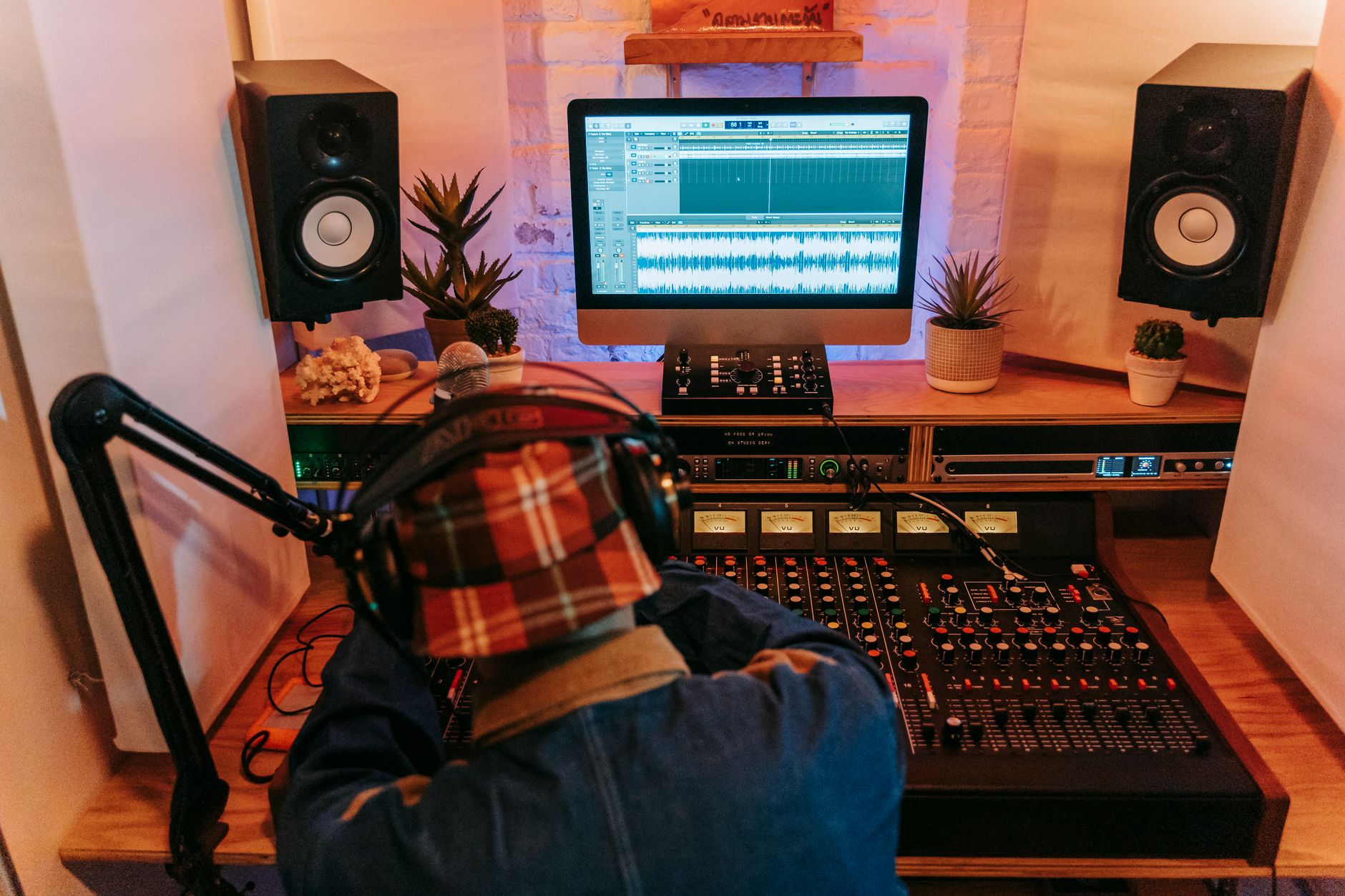
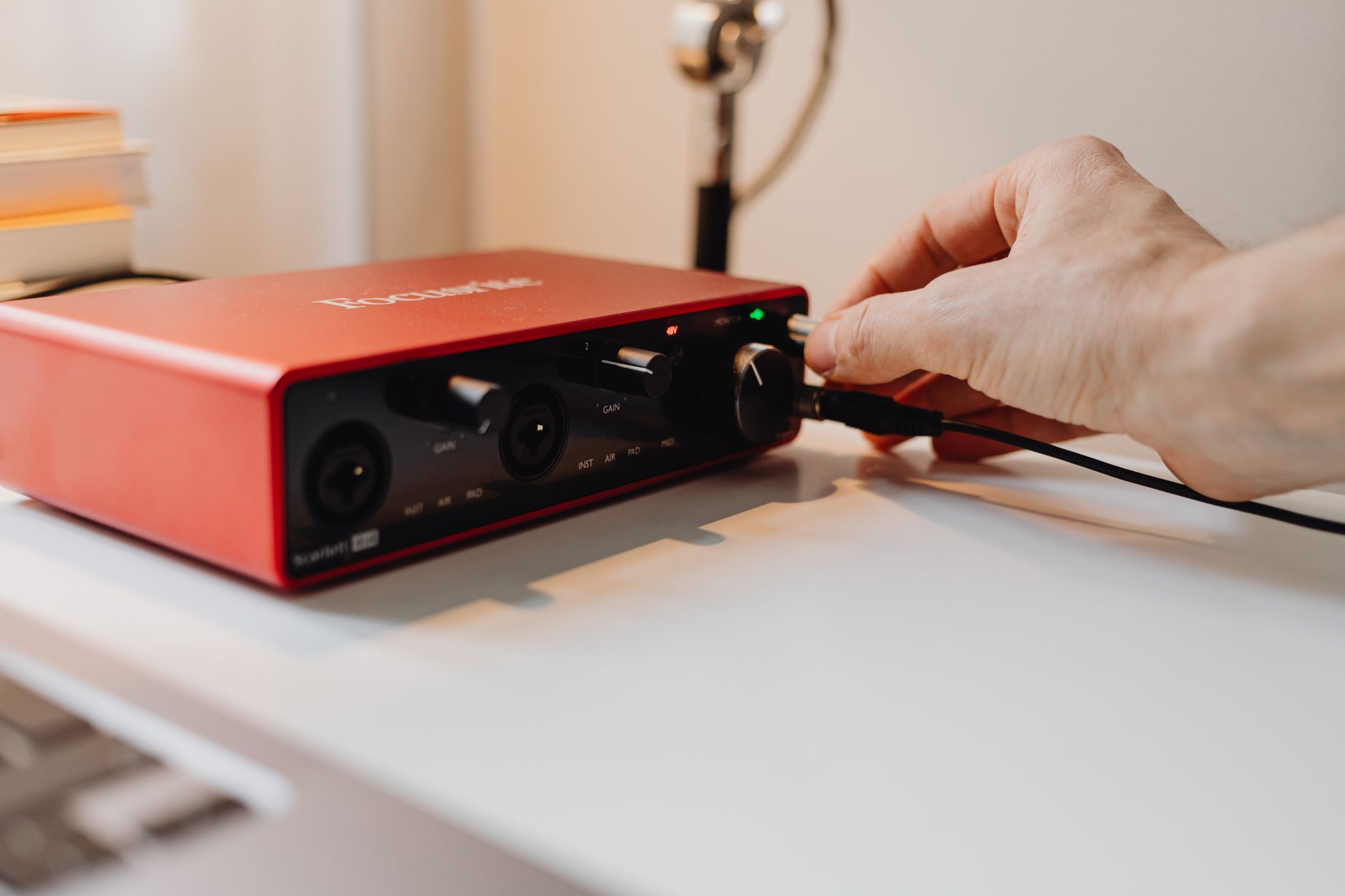 Photo: https://kaboompics.com/ via Pexels
The signal chain looks like this:
Microphone → XLR cable → Interface preamp → ADC → USB/Thunderbolt → DAW → DAC → Monitor speakers
For guitars and basses, the interface provides a high-impedance instrument input (marked “HI-Z” or with a guitar icon). This matches the output impedance of a passive pickup, preserving tone that would otherwise be lost plugging straight into a line-level input.
Phantom power (+48V) is another critical feature. Condenser microphones — the type most home studios use for vocals and acoustic instruments — require it to operate. Every interface ships with a phantom power switch; dynamic mics (like an SM58) don’t need it and aren’t affected by it.
Sample Rate and Bit Depth: What You Actually Need
For most home recording, 44.1kHz/24-bit is the correct choice. It’s the standard for music delivery (CD is 44.1kHz/16-bit, and 24-bit gives you 48dB of extra headroom over 16-bit to make gain staging mistakes without clipping).
Higher sample rates (96kHz, 192kHz) increase file sizes and CPU load significantly. Published research and expert consensus among mastering engineers suggests audible benefit is marginal for the vast majority of productions destined for streaming.
Do You Actually Need an Audio Interface?
Yes — if you’re recording a microphone, guitar, bass, or any instrument, you need an interface. No, if you’re entirely in-the-box: beat-making with a MIDI keyboard, producing with only software synths and samples, or podcasting via a USB microphone that has its own built-in converter.
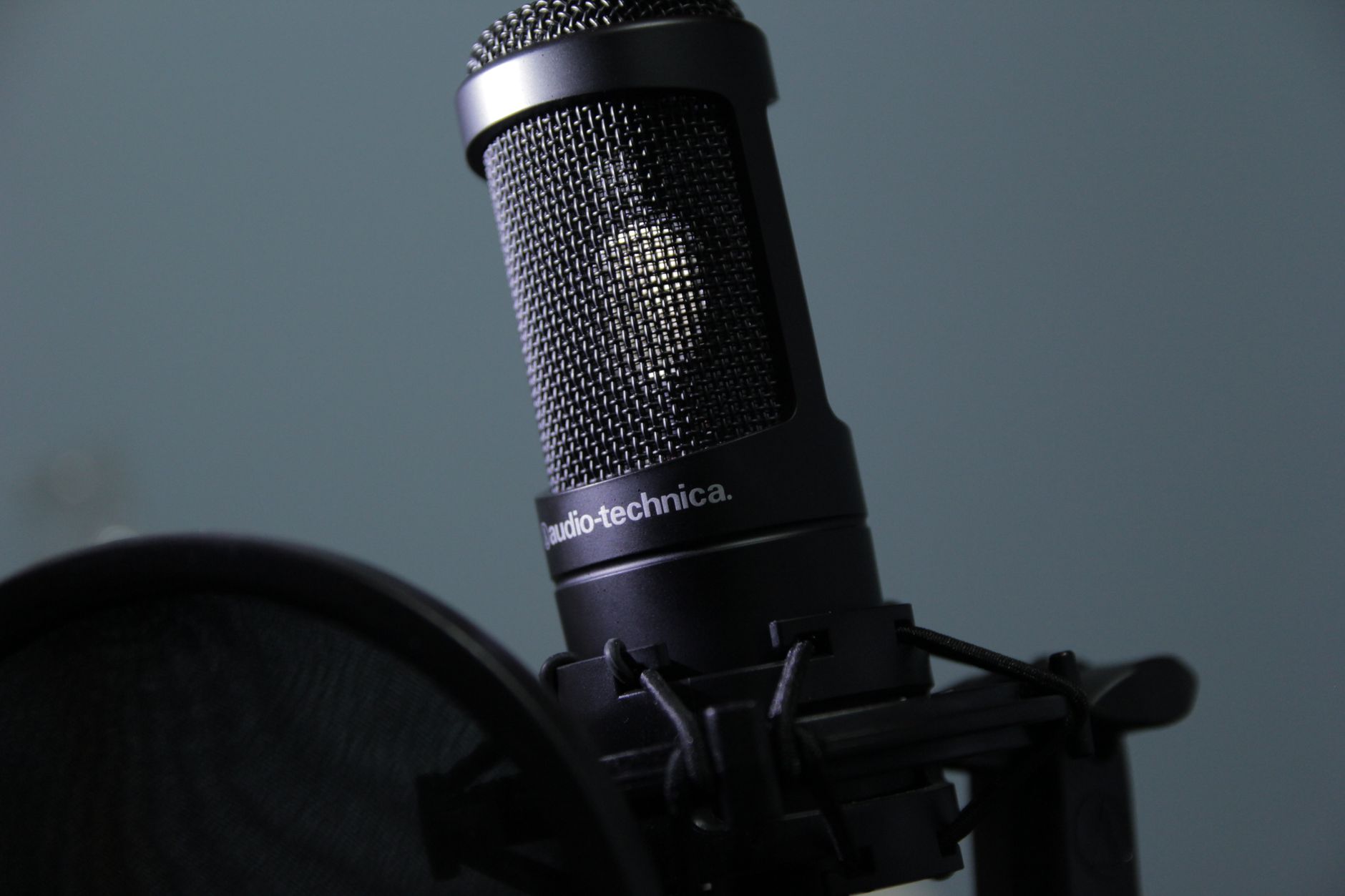 Photo: Ivan Cuadra via Pexels
Here’s the honest breakdown:
| Use Case | Need an Interface? | Why |
|---|---|---|
| Recording vocals with XLR mic | Yes | XLR input requires preamp |
| Recording electric guitar direct | Yes | HI-Z input + low latency monitoring |
| Recording acoustic guitar with mic | Yes | Same as vocals |
| USB microphone for podcasting | No | Converter is built into the mic |
| MIDI keyboard / software synths only | No | No analog signal to convert |
| Connecting studio monitors | Yes, recommended | Better DAC = better mix decisions |
| Laptop headphone jack recording | Not recommended | High noise floor, no proper inputs |
The one exception worth noting: USB microphones (like the Blue Yeti or Audio-Technica AT2020USB+) have a built-in converter and connect directly to your computer. They’re convenient for podcasting and streaming. The trade-off is you can’t upgrade just the microphone later — you’re locked into the USB mic’s built-in preamp and converter quality, which is generally lower than a dedicated interface running a separate XLR mic.
Choosing Your First Audio Interface
For a first interface, you need: at minimum one XLR input with phantom power, USB connectivity (USB-C on anything bought in 2024+), 24-bit/48kHz conversion, and monitoring outputs. Budget $100–$200 and you’ll get all of that with headroom to grow.
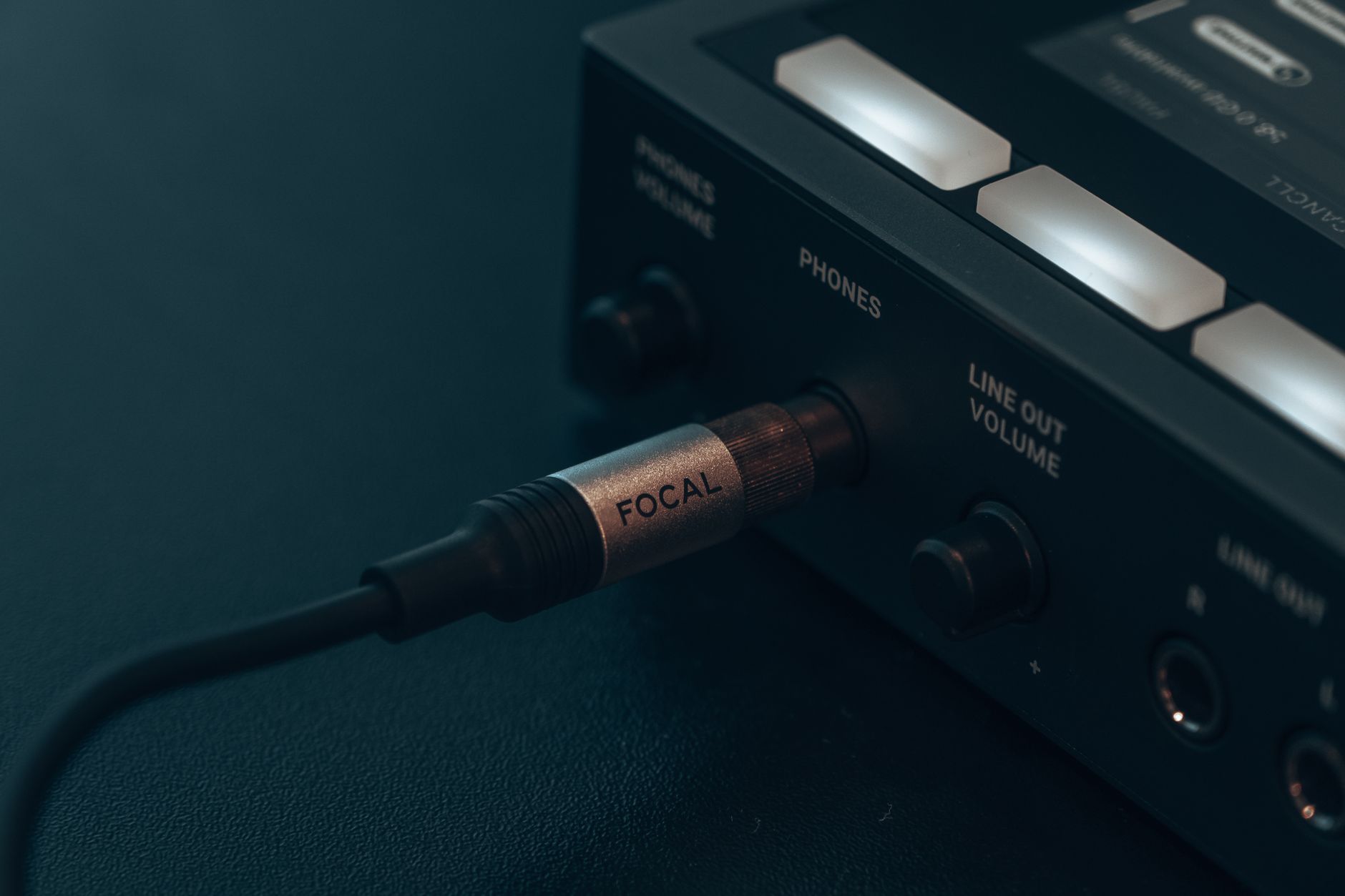
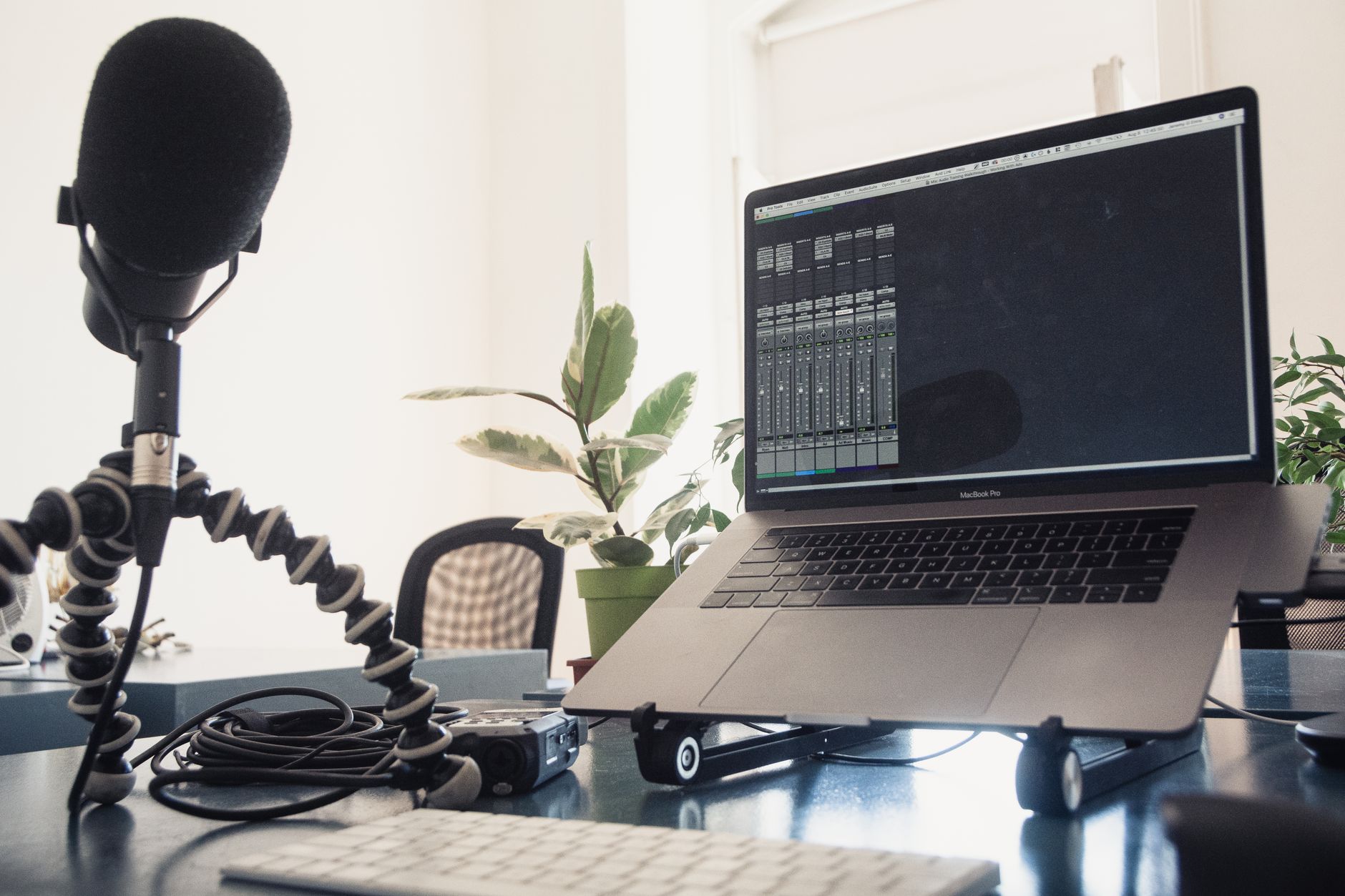 Photo: Jeremy Enns via Pexels
Key Specs to Evaluate
| Spec | What It Means | Minimum for Home Studio |
|---|---|---|
| Preamp noise floor (EIN) | Self-noise of the mic preamp — lower is better | -128 dBu or lower |
| Dynamic range | Difference between quietest and loudest signal | 108 dB or higher |
| I/O count | How many inputs/outputs | 1-in for solo, 2-in for band/acoustic |
| Sample rate | Maximum recording resolution | 48kHz minimum (96kHz preferred) |
| Bit depth | Dynamic headroom | 24-bit minimum |
| Connectivity | How it connects to your computer | USB-C (USB 2.0 sufficient for most) |
| Bus powered | Runs from USB, no power adapter | Strongly preferred for home use |
Interfaces Worth Considering
| Product | Price | Inputs | Preamp EIN | Best For | Verdict |
|---|---|---|---|---|---|
| Focusrite Scarlett Solo (4th Gen) | ~$120 | 1 XLR, 1 HI-Z | -129 dBu | Solo vocalist, guitarist | Best value under $150 |
| Focusrite Scarlett 2i2 (4th Gen) | ~$180 | 2 XLR/HI-Z combo | -129 dBu | Two-source recording, full home studio | Best all-round first interface |
| PreSonus AudioBox USB 96 | ~$100 | 2 XLR/HI-Z combo | -129 dBu | Tight budget, includes Studio One | Best under $100 |
| Universal Audio Volt 2 | ~$200 | 2 XLR/HI-Z combo | -129 dBu | Vintage preamp character option | Best for tone-shaping at this price |
| Audient iD4 MkII | ~$200 | 1 XLR, 1 HI-Z | -131 dBu | Best preamp quality under $250 | Prosumer pick |
Verdict by User Type
First-time beginner: Scarlett Solo 4th Gen. It’s the most widely supported interface on the market — driver support is rock-solid, tutorials are everywhere, and Focusrite bundles usable software to get you recording day one.
Bedroom producer: Scarlett 2i2 4th Gen. Two inputs handles acoustic guitar + vocal simultaneously, the Air mode adds presence without a plugin, and the direct monitoring is clean enough to track confidently.
Gigging musician: Consider the iD4 MkII. Audient’s console-grade preamp in a bus-powered unit — quieter recordings when capturing live practice or demo sessions on a laptop.
Prosumer / serious home studio: Look above the $200 mark at the Focusrite Scarlett 4-Pre or Audient iD14 MkII. Four preamps, more I/O, and better converters open up full band recording without tracking one piece at a time.
Common Setup Mistakes to Avoid
 Photo: Caleb Oquendo via Pexels
Latency problems are the most common first-interface frustration. The fix is almost always: install the manufacturer’s dedicated driver (not the generic OS driver Windows installs automatically), set your buffer size to 64–128 samples for tracking, and raise it to 256–512 for mixing when you need more CPU headroom.
Gain staging is the second most common issue. The interface’s gain knob controls preamp amplification — peak signal should hit around -18 to -12 dBFS on your DAW’s input meter (the yellow zone, not the red). Recording too hot causes digital clipping that cannot be repaired in post.
Monitoring confusion: most interfaces have a direct monitoring switch that routes input signal directly to your headphones with near-zero latency, bypassing the computer entirely. This is separate from your DAW’s software monitoring. Use direct monitoring when tracking; use software monitoring only when you need to hear effects applied in real-time.
→ See also:
- Best Audio Interfaces: The Complete Buyer’s Guide (2026)
- Best Audio Interface for Beginners (2026)
- Best Audio Interface Under $100
Do I Need An Audio Interface?
Direct Answer: Yes — if you’re recording a microphone or instrument into a computer. Built-in laptop sound cards lack proper XLR inputs, produce audible noise, and can’t deliver the phantom power condenser mics require. An audio interface fixes all three in one device.
| Your situation | Do you need one? | Why |
|---|---|---|
| Recording vocals or instruments with XLR mic | Yes | Laptop has no XLR input; no phantom power |
| Recording guitar or bass direct (DI) | Yes | Hi-Z instrument input prevents tone loss |
| USB microphone only, no expansion planned | No | USB mic has built-in conversion |
| Podcast — voice only, USB mic | No | USB mic is sufficient |
| Podcast — multiple guests or XLR mic | Yes | Multiple inputs + monitoring |
| Music production (MIDI only, no live audio) | No | MIDI goes direct; no audio conversion needed |
| Streaming with XLR mic for quality | Yes | Better preamp = audibly cleaner voice |
The entry point is low: a Focusrite Scarlett Solo (~$120) covers 90% of home recording needs. If you’re unsure, buy the Solo — it’s returnable, and you’ll know within an hour whether it solves your problem.
Do I need an audio interface if I have a USB microphone? Not technically — USB mics have a built-in converter and connect directly to your computer. However, if you later want to upgrade to better XLR microphones or record multiple sources simultaneously, you’ll need a dedicated interface. USB mics are a reasonable starting point but a dead end for expanding your setup.
Can I use an audio interface with a phone or tablet? Yes. USB-C interfaces (Scarlett Solo 4th Gen, iD4 MkII) work with iOS and Android devices that support USB audio class compliance. You may need a USB-C OTG adapter depending on your device. Not all interfaces are bus-powered reliably from mobile — check the manufacturer’s mobile compatibility list before purchasing.
What’s the difference between an audio interface and a mixer? A mixer blends multiple signals into a stereo output before they reach your computer. An audio interface sends each input as a separate track to your DAW. For home recording, an interface is almost always the right choice — you want separate tracks to mix in software. USB mixers bridge both functions but add complexity and cost.
Why is my audio interface making a buzzing sound? The most common cause is a ground loop — electrical interference between your computer, interface, and monitors sharing different ground paths. Try plugging everything into the same power strip. Other causes include a cable picking up RF interference (try a different cable), or phantom power left on for a dynamic microphone (harmless but occasionally introduces noise with some mics).
How much does a good audio interface cost? According to published reviews and expert consensus across major recording publications, the functional sweet spot is $100–$200. Below $100 (PreSonus AudioBox USB 96, Behringer U-Phoria UMC202HD) you get workable results. Above $200 you’re getting measurably quieter preamps and better converters, but the law of diminishing returns is steep. The $120–$180 range covers the vast majority of home studio needs.
Does audio interface brand matter? Focusrite and PreSonus dominate the entry-level market because their drivers are stable and their preamps are quiet for the price — manufacturer specifications and years of published user data support this. Universal Audio interfaces add onboard DSP processing (running UA plugins with near-zero latency on the hardware itself), which is a meaningful differentiator at the $300+ price point. At the sub-$200 level, driver stability and preamp noise floor are more important than brand loyalty.
Editorial methodology: Assessments are based on manufacturer specifications, published user reviews, and editorial research. Physical hands-on testing is noted explicitly where it occurred. Rankings reflect our editorial judgment and are not influenced by affiliate commission rates. Full editorial policy · Affiliate disclosure